

Table of Contents
Patriot Systems Integration
Patriot is alarm monitoring automation software used by Alarm Receiving Centres, including Intelligent Monitoring Solutions (IMS). TetherX sends alarms to a Patriot control room over Patriot's own interface rather than by email, so every signal is confirmed as it is recorded, arrives with the camera identified, and carries the verification image with it.
This page covers setting a site up. The control room administrator's own job, what Patriot's interface can and cannot carry, and what to check when alarms are not arriving, are all in Patriot Systems Reference.
What Your Operator Sees
Once a site is reporting, every alarm carries a Control Room panel showing what the control room did with it: the Patriot ticket number, the operator who took it, how long they took, how they completed it and why, and which of your own operator's actions reached Patriot. It is on the event page and in the operator console, so whoever is working the alarm sees it.
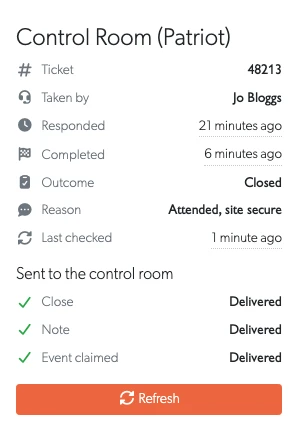
The control room's operator is named to the trade only. Staff, integrators and distributors see who took the alarm; the account's own users and admins see everything else about it, including the ticket, the times and the outcome, but not the name. Control rooms ask for this, so it is how TetherX behaves by default rather than something to switch on.
Refresh re-reads the alarm from Patriot straight away. Patriot cannot notify TetherX, so the panel is otherwise refreshed by asking every couple of minutes while the alarm is still open.
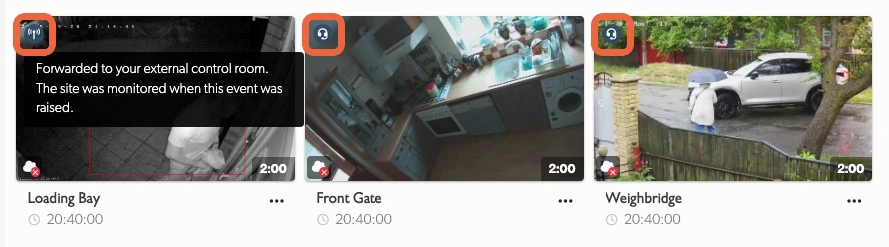
A site can report to your control room, be watched by TetherX operators, or both, so each event in the list carries a badge naming where it was handed to. Hover it to read the arrangement in full.
Alarms themselves arrive in Patriot with the camera identified and the verification image inside the signal:
| Benefit | Description |
|---|---|
| Confirmed delivery | Patriot confirms an alarm once it is recorded in its database, rather than simply accepting it. If it cannot be recorded, TetherX retries and reports the failure instead of assuming it arrived. |
| Named cameras | Each camera reports under its own number, so the operator sees which camera fired rather than a site-wide alarm. |
| Typed events | Person, vehicle, line crossing, loitering, tamper, camera offline and the rest arrive as distinct Patriot event types, so your control room can give each one its own action plan. |
| Verification image included | The snapshot travels inside the signal, so the operator sees it in Patriot without leaving the alarm. |
| Site position | The site's coordinates go with each alarm and appear on the account's Map tab. |
| Connection heartbeat | A control room account sends a signal every minute to an account the control room nominates, so they know at once if alarms stop reaching them. Patriot itself has no heartbeat: it is an ordinary signal to an account they watch, so ask whether they want one and where to send it. |
| No port forwarding | As with every TetherX integration, nothing is opened on the customer's network. |
Alarms, verification images, camera and device failures, the site's position, the heartbeat and the site's armed state are sent today, and need nothing beyond the right to log a signal.
Everything that goes the other way, or writes against an alarm already open, needs your control room to grant the TetherX user more than that. Where the rights are granted, a TetherX operator taking an alarm, commenting on it, firing a deterrent, snoozing it or closing it is written onto the control room's own screen, camera names are written into the matching Patriot zones, and a site can be put on test for planned work. A close carries a note saying who closed the event and whether they were at the site or one of the monitoring operators, because Patriot records its own API user against the completion itself. The one thing a close still cannot say is why it was closed, which waits on agreeing with your control room which of their own reasons a TetherX close means. Patriot Systems Reference lists all of it, including what Patriot's interface refuses outright whatever rights are granted.
Patriot files an alarm arriving on an account that already has one open onto the alarm it is holding, rather than raising a second. The alarm keeps the link of the event that raised it, so TetherX adds a note carrying the link to each event as it joins. An operator working one alarm can then reach every event behind it, instead of only the first.
Before You Start
Note: Patriot calls you the dealer or the bureau, and uses the two words to mean the same thing. Both are what TetherX calls the integrator or distributor: the company whose customers the control room monitors. A control room may also offer you a login to their Bureau Access Portal, which is the self-service view of your own accounts. What that login can see and edit is decided by the Security Group the control room puts your user in, not by the portal itself, so ask them to change the group rather than the user when a read you expect is refused. Every other word the two systems use differently is translated in Patriot Systems Reference.
Ask your Alarm Receiving Centre for:
- the ICA address, for example
https://ica.example.com - the username and password for the TetherX user
- each site's client number in Patriot, which includes the area and port, for example
0013BASE01 - whether they want a connection heartbeat, and if so which account number to send it to
And ask them to confirm all of the following. Each is a Patriot requirement, not a TetherX one.
- Internet Client Access with Extended Logins. The Patriot API is served by the control room's ICA host, and signal logging needs Extended Logins.
- A security group with the Log Signal right, and a user in that group created for TetherX. One user covers every site the control room monitors for you.
- That user assigned to each account TetherX will report against. Patriot refuses a signal for an account the user is not assigned to.
- The Standard Media Camera module, with the account's Camera Type set to Standard Media, if the operator is to see the verification image.
- An event type template covering the TetherX event numbers, so each alarm has a description and an action plan. The file and the steps are in the reference page.
Warning: The event type template matters more than it looks. A number the control room already uses for something else turns a video alarm into whatever that number already means, which has put a camera detection on an operator's screen as a fire signal. Ask them to check 9001 to 9049 before the first site goes live.
Choosing How a Site Signs In
Each site reports to Patriot in one of two ways. Ask your control room which one applies before you start.
| Connection | Use it when | What the site holds |
|---|---|---|
| Control room account | The control room issued one login for every site it monitors for you, and expects a heartbeat from the integration. IMS works this way. | The client number only. The login and the heartbeat are held once, on an operator account. |
| This site's own login | The control room issued a login for this site only. | The address, username, password and client number. No heartbeat is sent. |
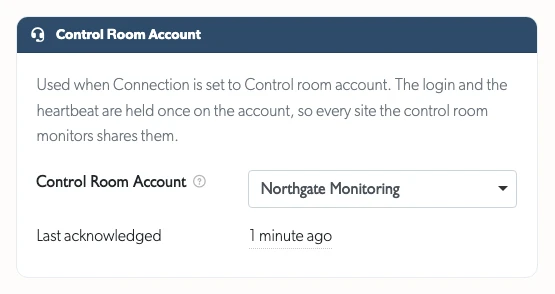
With a control room account, the login is entered once and never touched again as you add customers. Each new site still needs two things of its own: its client number, which the control room issues per monitored account, and access to that site's cameras for the control room account, so it can carry the alarm and open what the alarm links to. One account can carry sites belonging to different customers.
Setting Up a Control Room Account
Skip this if each site has its own login.
A control room account is an Operator account that stands for the control room. It holds the Patriot login and sends the heartbeat, and the control room's staff can sign in with it to open what each alarm links to. Integrators and TetherX staff can set one up.
Create an Operator account for the control room, as described in User Permissions. See User Types for what an Operator can do.
Give it access to the cameras of each site the control room monitors, on the Permissions tab. A site can only report through an account that can reach it.
Open the account and select the Integrations tab, where the Control Room section sits.
Enter the Patriot login your control room gave you:
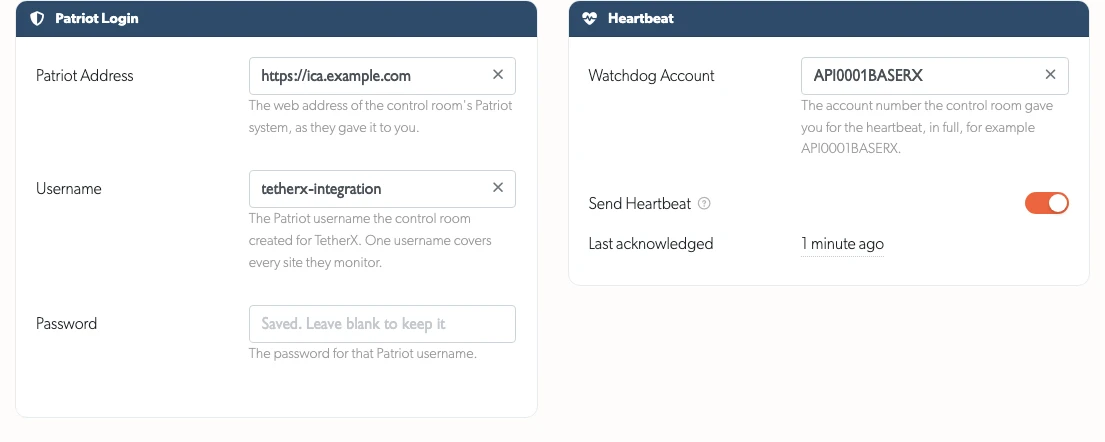
- Patriot Address: the ICA web address, for example
https://ica.example.com - Username and Password: the Patriot user created for TetherX
- Watchdog Account: the Patriot account number the control room wants the heartbeat sent to, in full. Leave the heartbeat off if they do not watch for one
Switch Send Heartbeat on and select Update User. TetherX sends the first heartbeat within a minute, and Last sent shows when. Patriot answers a signal with no acknowledgement, and the watchdog account is the control room's own rather than one of yours, so nothing in TetherX can confirm the heartbeat arrived: ask the control room to check they are seeing it once you have switched it on.

The password is never shown again once saved. Leave the field blank to keep it, or type a new one to replace it.
The Sites Reporting Through This Account list shows every site that uses the account:
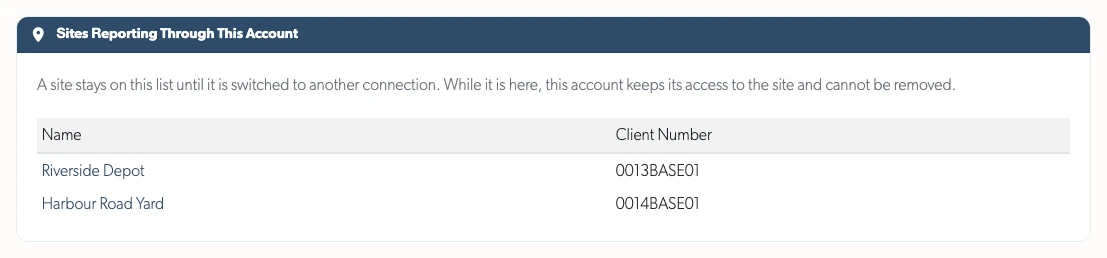
Warning: TetherX refuses to remove this account's access to a site on the list, deactivate the account, change its type or delete it. Switch those sites to another connection first, so no monitored site is left without a way to report.
Setting It Up on a Site
Select the Control Rooms tab, then Patriot Systems.
Choose the Connection and enter the site's details:
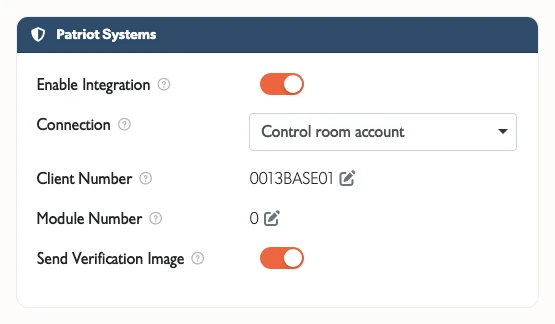
- Connection: Control room account or This site's own login
- Client Number: this site's Patriot account number, including area and port
- Module Number: leave at 0 unless your control room asks otherwise
- Send Verification Image: leave on so the snapshot goes with each alarm
With a control room account, choose the account under Control Room Account. Only active Operator accounts holding a Patriot login that can already reach this site are listed.
With this site's own login, enter it under This Site's Own Login:
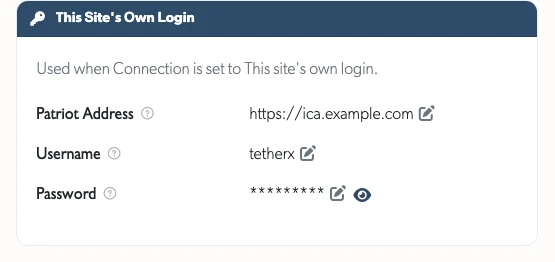
- Patriot Address: the ICA web address
- Username and Password: the Patriot user created for this site
Switch Enable Integration on. TetherX asks for the details the chosen connection needs first, so that a site cannot be left switched on with nothing to report to.

Once enabled, TetherX AI detections, camera analytics and VMD Events for this site are logged in Patriot as they happen, along with device and camera communication failures.
Camera Numbers
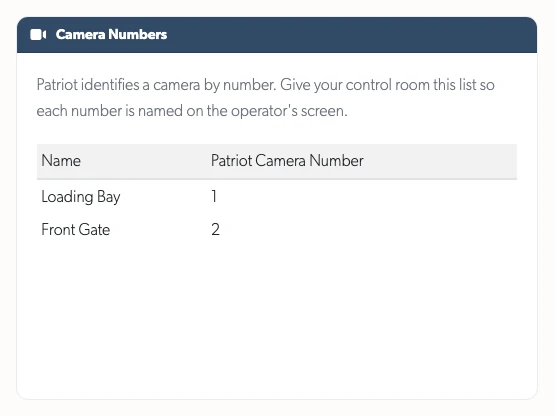
Patriot identifies a camera by number within the account. TetherX assigns each camera a number the first time it raises an alarm, and keeps it for the life of the camera.
The Camera Numbers list on the Patriot Systems tab shows the number for each camera at the site. Send that list to your control room so they can name each zone in Patriot. The operator then sees "Person Detected - Loading Bay" rather than a bare number.
Planned Work: Maintenance Windows
Work at a site sets cameras off, and each one becomes an operator call-out. A maintenance window puts the site on test at the control room for a set number of hours, so the alarms still arrive and are still recorded, and the history of what the site did during the work survives, but nobody is called out for them.
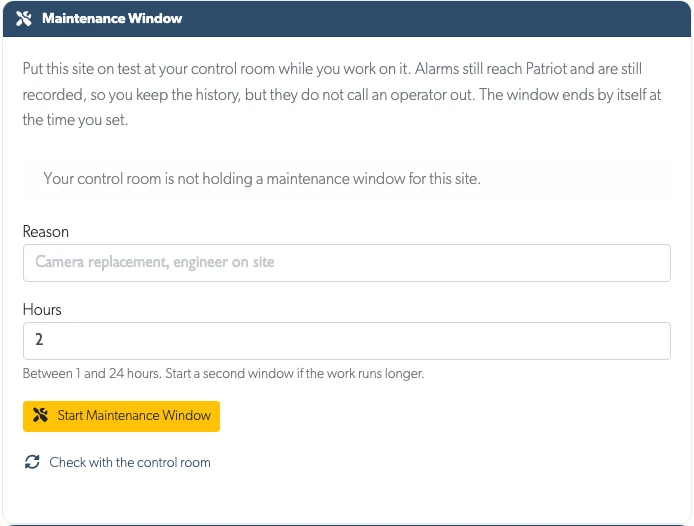
The card is on the site's Patriot Systems tab, under the connection settings.
- Reason: what the work is, in a line. The control room's operator reads this, so write it for them: "Camera replacement, engineer on site" rather than "testing".
- Hours: between 1 and 24. Start a second window if the work runs longer.
- Start Maintenance Window puts the site on test straight away.
The window always carries an end time, and Patriot expires it itself, so a site cannot be left quietly off watch because nobody cancelled it. Cancel puts the site back on watch before then.
Check with the control room asks Patriot what it is actually holding and redraws the card with the answer. Use it when somebody may have started or cancelled a window in Patriot's own client, because TetherX only knows about the ones started here.
Note: This needs the TetherX user to hold the right to set test mode. Without it, starting a window reports the refusal in the control room's own words, naming the right they have to grant.
Monitored by IMS?
Intelligent Monitoring Solutions monitor on Patriot and issue one login for the whole integration, so their sites use a control room account. Their onboarding, the details they provide and the format of their client numbers are in Intelligent Monitoring Solutions (IMS).
If Something Is Not Working
Start with Test connection on the site's Patriot Systems tab. It signs in over the connection the site is configured to use and reports what the control room said, including whether it recognises the client number alarms are logged against. It writes nothing at the control room, so it is safe to run on a live account.
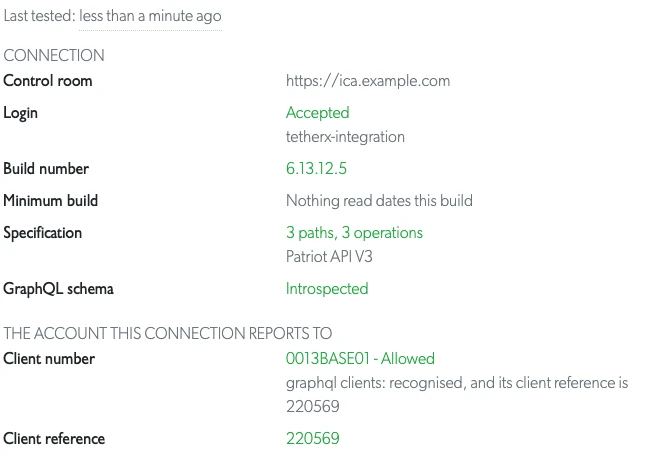
The report covers both directions. What TetherX can send back is the half that matters to an operator: whether this control room lets TetherX close an alarm, pick one up, snooze one or write a note onto it. Those are checked without any of them being sent, so the test stays safe to run on a live account.
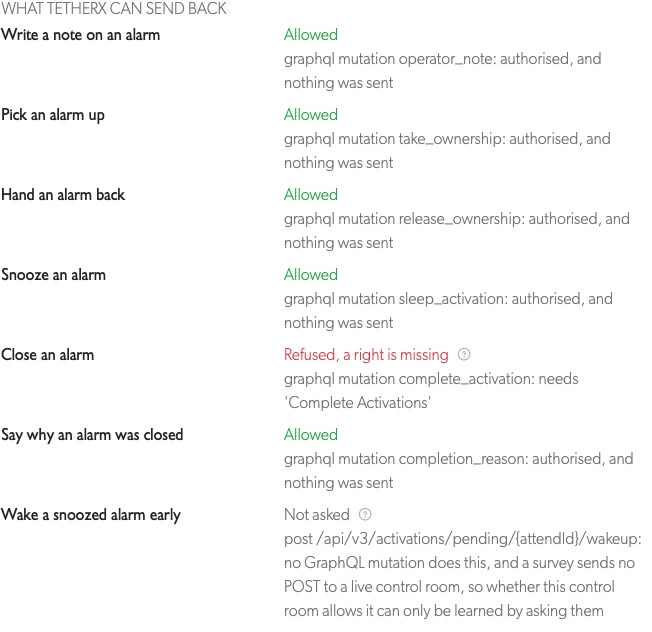
Every line that is not working carries a question mark you can hover or tap, which says what stops working rather than repeating the control room's own wording: it is the difference between "needs 'Complete Activations'" and "closing an event in TetherX will not close the alarm at the control room". The reads below it work the same way.
Note: Where a recent test has established that your control room refuses something, TetherX stops asking for it on every event and says so on the event instead, naming the permission and when that was found. Grant the permission and test again to clear it.
The result is kept, so the tab opens on the last answer rather than on a blank panel, and Last tested says how old it is. Read that first: a right granted this morning, a client number corrected yesterday or a Patriot upgrade at the weekend all make an older report wrong without changing a word of it. Re-test connection asks again now.
The same test is on a control room account's Integrations tab, where it covers the login every site on that account shares.
The rest of the checks are in the reference page, starting with the four that account for most of it: the site is armed, the client number includes the area and port, the TetherX user is assigned to that account in Patriot, and the heartbeat is being acknowledged.
Related Articles
- Patriot Systems Reference - Event types, limitations, planned features and troubleshooting
- Control Room Software Integration - Immix, CONXTD and HikCentral
- User Types - What an Operator account can do
- User Permissions - Creating an account and giving it access to cameras
- Monitoring Station Operator Guide - Working alarms in the operator console
- Monitored Hours - When a connected site's detections are actually sent
- Definitions - Event types and terminology
- Tunnelling to Network Devices - Remote access to on-site devices
Referenced in: