

Table of Contents
Control Rooms
TetherX runs the whole control room from one screen: live video, alarm activations, access events and AI analytics in a single timeline. Operators verify the threat, trigger talk-down on the camera, and dispatch with the clip already attached. No flipping between an alarm CRM and a separate camera viewer.
This page is the map to everything a control room, Alarm Receiving Centre (ARC) or Global Security Operations Centre (GSOC) needs. For the step-by-step workflow, see the Monitoring Station Operator Guide.
Tip: A bare alarm no longer rolls a police car under verified-response policies, so an AI prefilter plus an operator on every event keeps your sites verified and out of the fines column.
Operators and Supervisors
Two control room roles, set in user permissions. See User Types for the full list.
- Operator - watches live and recorded events across assigned sites. Like a standard User, an operator only sees the cameras and zones it is assigned. Events default to List View with sound alerts, tuned for sit-and-watch use.
- Supervisor - any operator marked as a supervisor in their permissions, shown with a badge on the Users list. Supervisors are the escalation target.
Opening any event brings up the Operator Console - one screen to assess, act and close an event end to end.
- The recording player sits in the centre, with the event detail and site notes on the left.
- An action toolbar above the player handles every response: send report, call, escalate, deterrence, flag, open live.
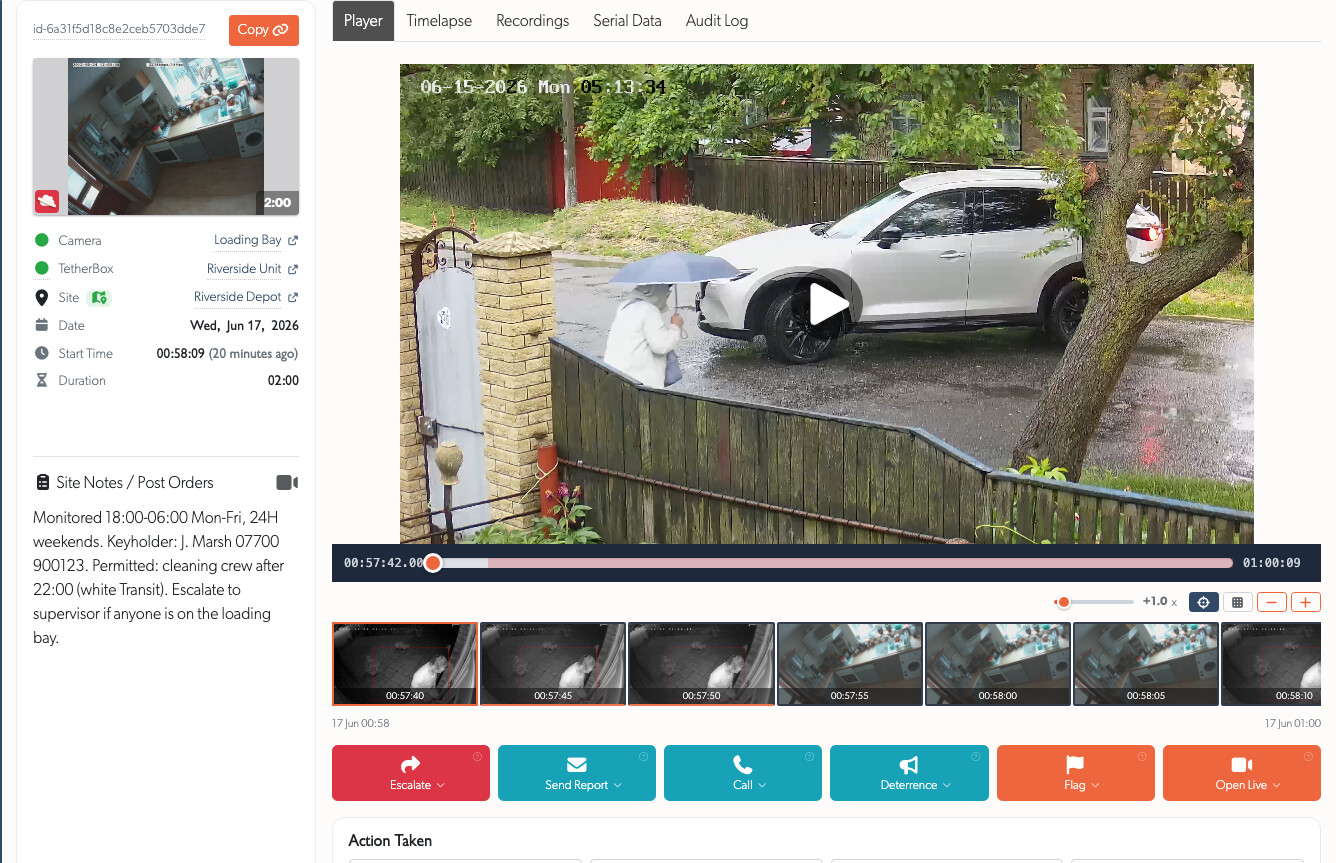

From the console an operator can:
- Send a report to site contacts, call a contact, or escalate to a supervisor.
- Trigger deterrence - siren, two-way talk, or a pre-recorded warning over the camera.
- Record the action taken - observed, report sent, emergency services dispatched or arrived.
- Flag footage for retention (30 days, 90 days, 1 year) with automatic clear.
- Return the event to the queue for another operator, or close and jump to the next.
A supervisor receives Call Supervisor calls for an immediate decision, and Send to On-Call Supervisor escalation reports when they should take the event over.
Tip: Use Call Supervisor for a live decision, and Escalate when a supervisor should take the event over and keep handling it.
The Monitoring Strip
When an operator closes an event that still has active analytics or motion, it does not disappear. It moves to the Monitoring Strip on the right of the screen for a configurable period (default 5 minutes).
The strip keeps a final glance on closing events before they fully close, so activity right after closure is never missed.
Countdown timer - shows time remaining, sorted oldest-first so events closest to expiring sit at the top.
Red pulse - in the final 30 seconds the countdown pulses red for a last double-check.
Activity alerts - events flash when new analytics are detected (person, vehicle, motion).
One-click reopen - push the event back to the main list for full review.
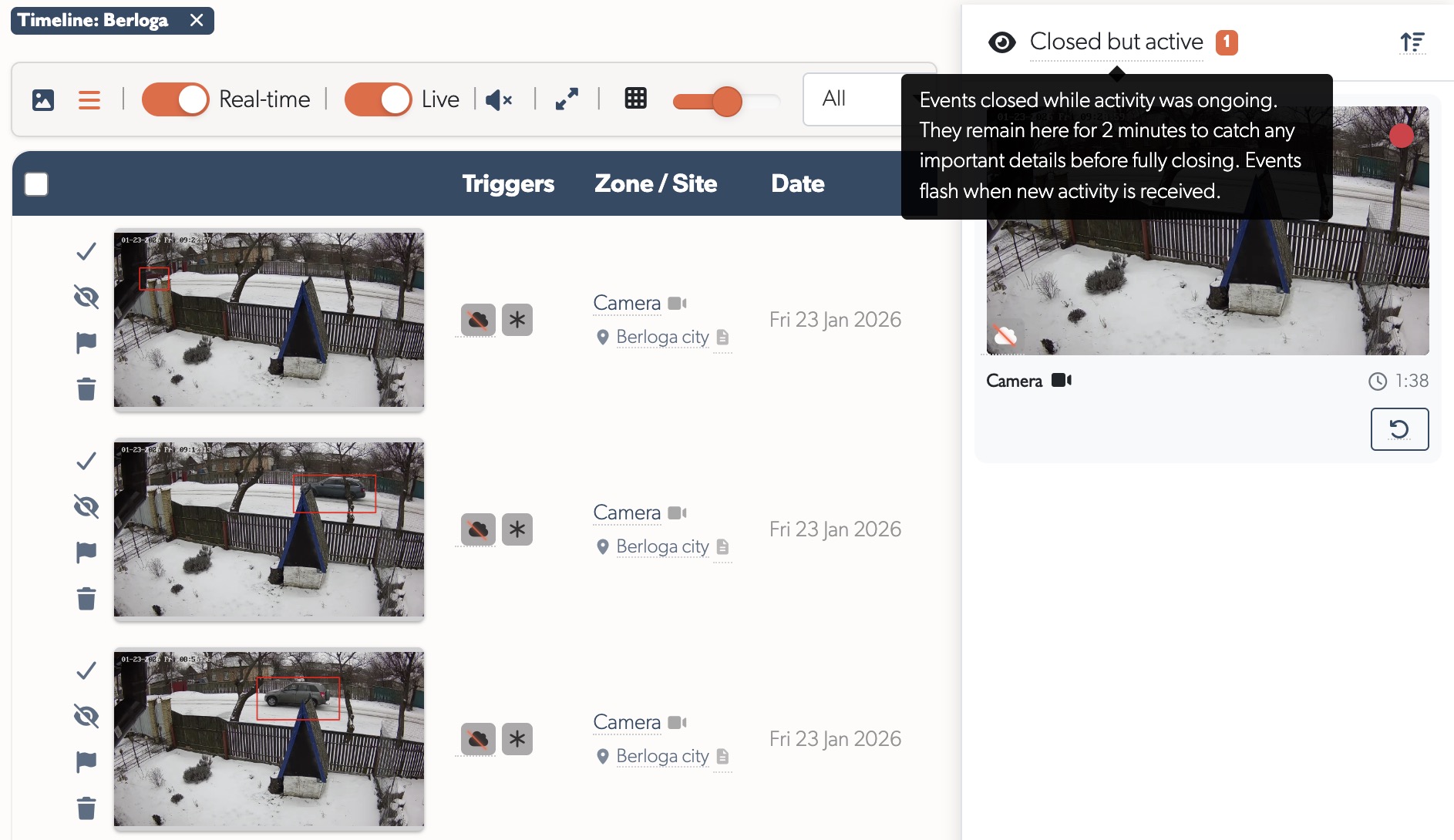
Because an event stays open while activity continues, a single event now covers what previously generated multiple separate ones. Sites that showed thousands of events now show hundreds. See Top ARC Improvements for the wider feature set.
GSOC Reports
The GSOC page at Settings ARC Performance Report gives a control room daily, pre-aggregated metrics on event handling, operator performance and camera activity. Reports are generated nightly.
- Trends - events per day and response-time trends over 60 days, with paginated report history.
- Day details - KPI cards, hourly distribution, busiest hours, and the response-time spread.
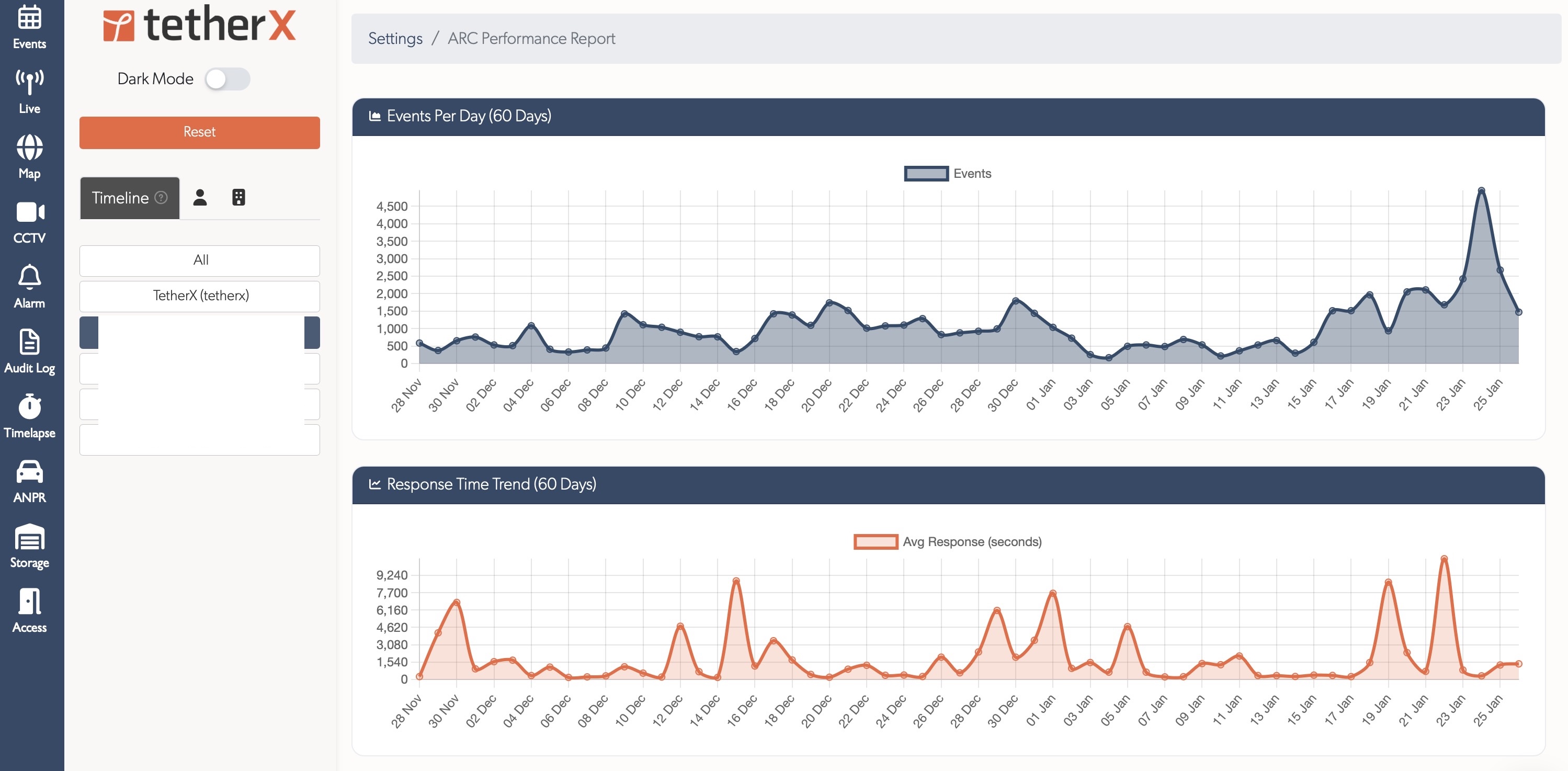
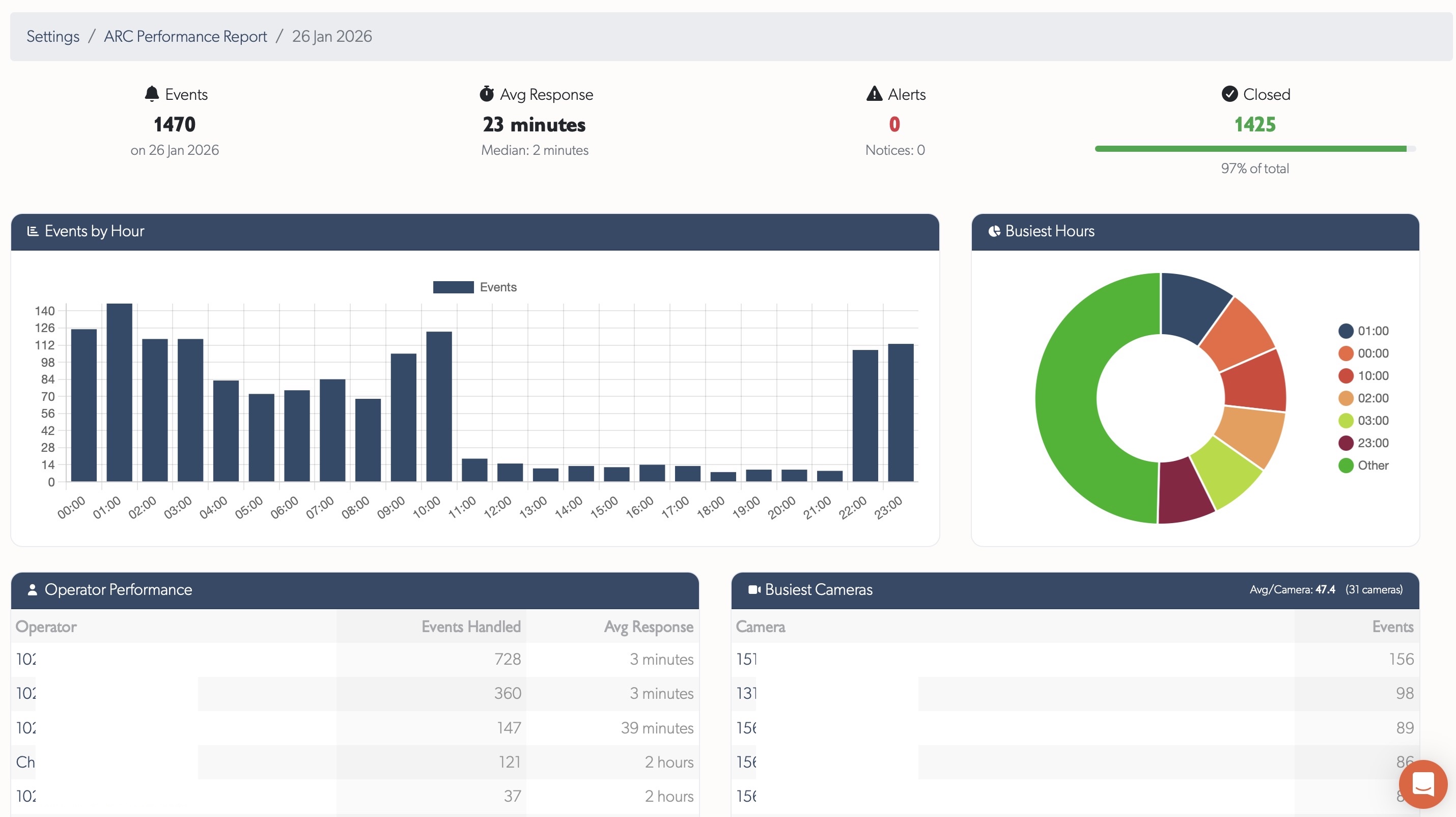
Each report breaks down:
- KPIs - total events, average response time, alerts, closed percentage, events per camera.
- Hourly distribution - the busiest hours of the day, so you can staff your peaks.
- Operator performance - events handled and average response time per operator, with direct links.
- Busiest cameras - the highest-activity zones, linked for investigation.
Tip: GSOC reports are available to staff, integrators and admins on their assigned timelines. See ARC Performance Reports for the full breakdown.
Built for ARCs and GSOCs
- Multi-operator workflow - an opened event is marked Pending for 3 minutes so two operators never duplicate work.
- Live preview on hover - check a camera before opening the full event.
- Real-time toggle - pause new events while clearing a backlog, then re-enable when ready.
- Visual event timeline - correlated CCTV, access control and alarm-panel events with video thumbnails, so you find footage in seconds.
- Connect any ARC - feed clean, AI-prefiltered events into Immix, CONXTD, Patriot, MASterMind, Manitou or Stages, or run the whole control room in TetherX.
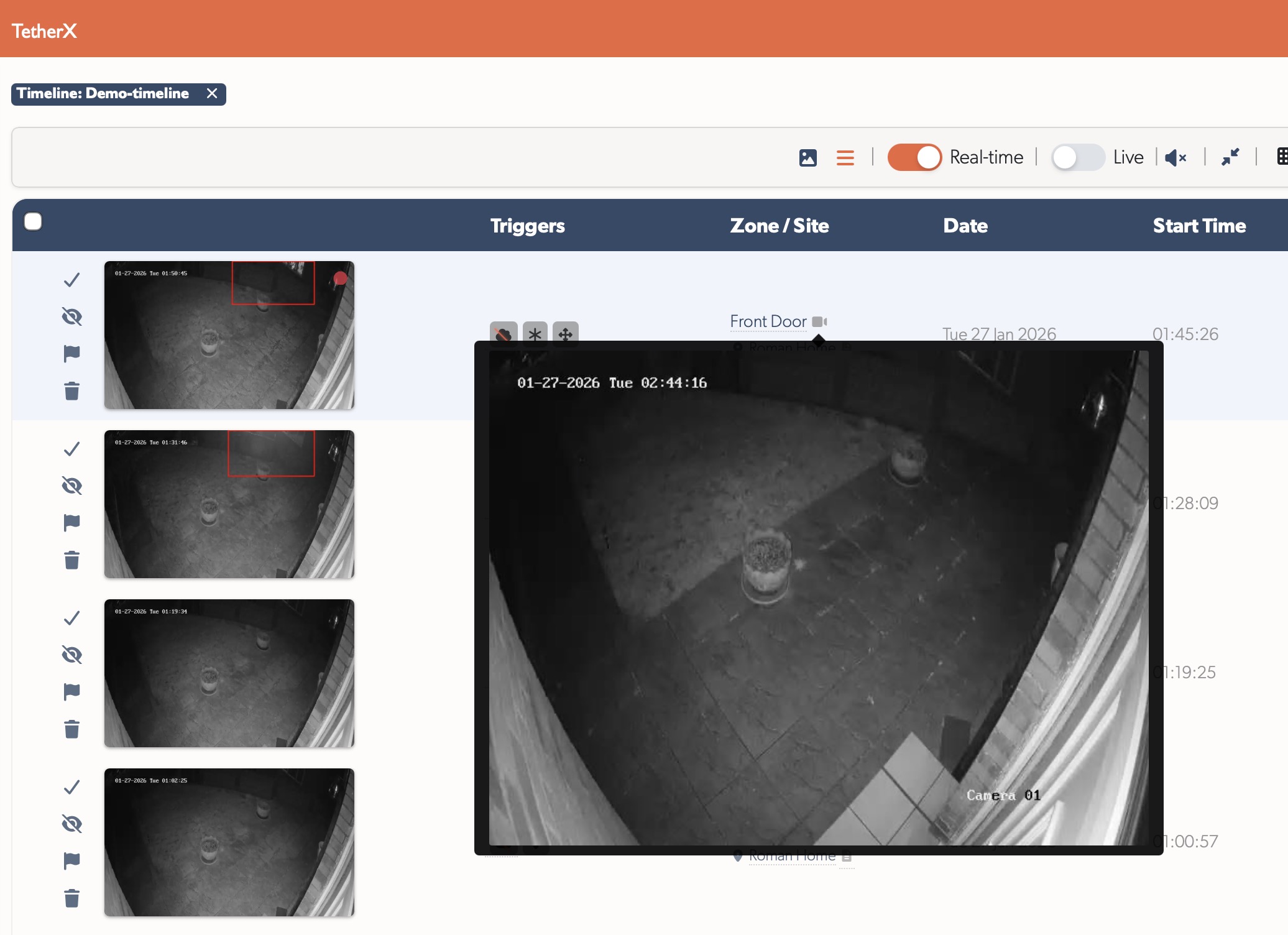
For slowdown reports and how to raise them, see Reporting Issues in the Monitoring Station Operator Guide.
Customer Story: Block Surveillance
Block Surveillance runs its AI Guard verified-response monitoring service across Canada, the USA and Mexico on TetherX. Live bilingual operators put a human on every event before dispatch, false-alarm fines went to zero, and dealers earn recurring revenue without standing up their own monitoring centre.
Read the full story: Block Surveillance delivers verified-response monitoring across North America (opens in a new tab).
Related
- Monitoring Station Operator Guide - the complete operator workflow.
- Top ARC Improvements - the headline control room features.
- ARC Performance Reports - daily GSOC metrics in full.
- User Types - operator, supervisor and other roles.
- User Permissions - set the operator and supervisor permissions.
- Notifications - event escalations and the alerts operators receive.
- Events View Menu - filtering, grouping and display options.
Referenced in: