

Table of Contents
Camera Recording Schedule
A camera's recording schedule decides when it records and when it can be watched live. It is set per camera, in the camera's own local time.
The schedule also decides whether a detection at that camera opens an event. A camera recording nothing at three in the morning raises nothing at three in the morning either.
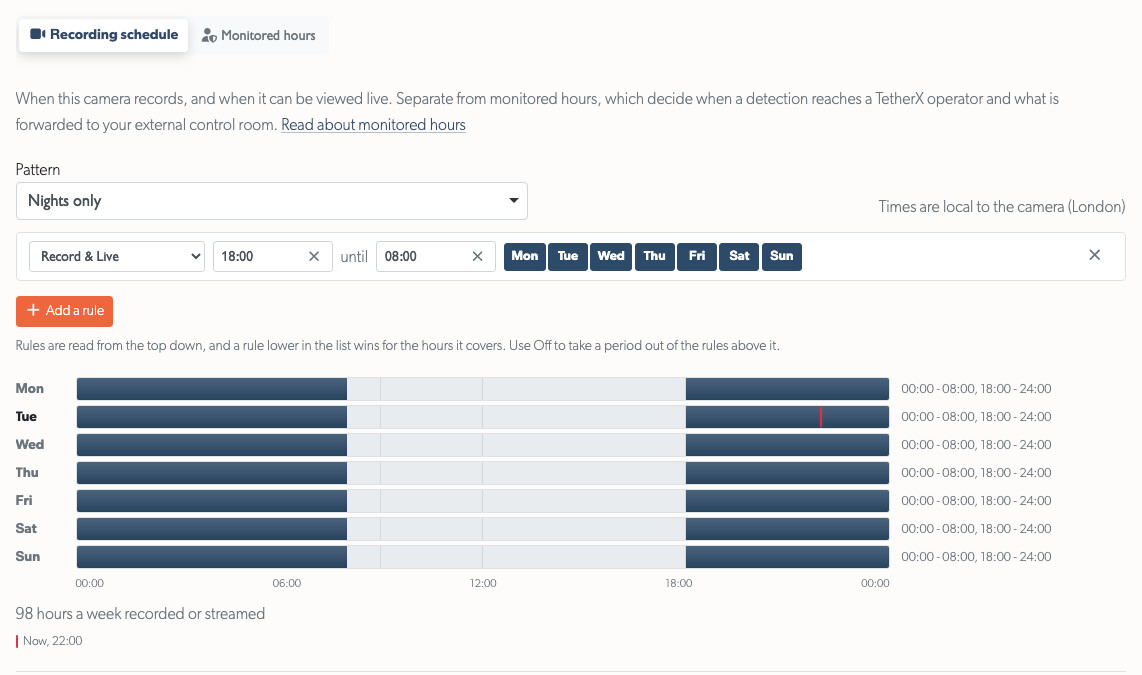
Open the camera, then select Schedule. The tab holds two schedules as sub-tabs, and it opens on this one:
- Recording schedule - when the camera records and when it can be viewed live.
- Monitored hours - when a detection at this camera reaches an operator. See Monitored Hours.
Warning: These are two different questions and the wrong one is easy to change. Editing the recording schedule when you meant the monitored hours stops the camera recording during the period you meant to stop calling somebody out for.
Rules, not hours
A schedule is a list of rules. Each rule says what it does, the times it runs between, and the days it applies to: "Record & Live, 18:00 until 08:00, Monday to Friday".
- Start from a pattern and adjust it, or write your own rules. The rules are what is saved, not the pattern name: the picker reads the saved rules back afterwards and names whichever pattern they match, or Custom where they match none.
- The bar under each day shows the hours the rules cover. Drag across it to add a rule, or select it to add a rule for that day and enter the times. Dragging steps in 15-minute intervals; a time you type can be any minute.
- A rule that runs to the end of the day ends at 24:00, so all day reads "00:00 until 24:00". Midnight is the start of a day, and a rule ending at 00:00 would be a rule of no length.
- Times can be typed however you write them:
9,930,9:30,0930and09:30all mean half past nine. - One rule can cross midnight. "18:00 until 08:00" covers the evening and the following morning.
- Hours a week under the week is the total time the camera records or streams, so you can check the pattern at a glance.
The three patterns are a starting point rather than a setting:
| Pattern | What it sets |
|---|---|
| Record & Live, all day every day | One rule covering the whole week. This is what a camera with no schedule already does. |
| Record all day, live view during the day only | Records around the clock, and allows live view between 08:00 and 18:00. |
| Nights only | Records and streams from 18:00 until 08:00, and nothing during the day. |
Press Save this schedule when the rules say what you want. Nothing is applied until you do.
What a rule does
Every recording rule carries one of four settings.
| Setting | Records | Live view | Use it for |
|---|---|---|---|
| Record & Live | Yes | Yes | The ordinary case, and the one most cameras stay on. |
| Record, no live view | Yes | No | A period that must be kept as evidence but not watched, such as a treatment room or a staff area. |
| Live only | No | Yes | A camera somebody watches during trading hours without keeping the footage. |
| Off | No | No | A period the camera should do neither. |

Rules are read from the top down, and a rule lower in the list wins for the hours it covers. That is what lets two rules say something a single row cannot: a rule recording the whole week, and a rule under it switching off the hours you are open.
Off is how you take a period out of the rules above it. It is not stored as a setting of its own: saving removes the hours it covers, so a rule you added as Off does not come back as a row when you open the screen again. The week under the rules shows what actually remains.
Tip: Two rows, "Record & Live all week" then "Off, 09:00 until 17:30, Monday to Friday", is easier to check than the four rules you would otherwise have to work out around the gap.
A week with every period switched off cannot be saved, and TetherX says so rather than saving it. A camera with no schedule at all records around the clock, so an empty week would do the opposite of what it looks like.
The camera's own clock
The times in a rule are the camera's local times, and the line above the rules names the zone they are read in. A camera takes that zone from its TetherBox, so a unit in the wrong zone gives every camera on it the wrong schedule.
"18:00 until 08:00" is therefore the evening wherever the camera is installed, with no arithmetic from whoever sets it. See Timezones for setting a TetherBox's zone.
Setting the same schedule on many cameras
The same editor applies one schedule to a whole selection.
- Go to Admin → Cameras
- Select the cameras, using the row checkboxes or the header checkbox
- Choose Edit in the selection toolbar
- Open the Schedule tab
- Tick Apply this recording schedule to every selected camera, set the rules, then choose Apply Changes
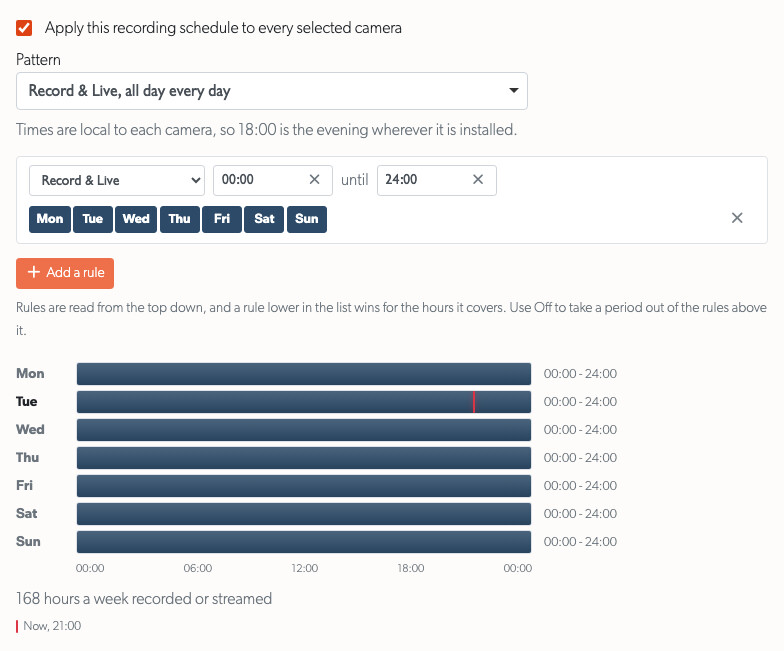
Nothing on this tab is applied until the box is ticked, so the other tabs' fields can be changed without touching the schedule. The times apply in each camera's own clock, so a selection spanning several countries still gets each site's own evening.
What you see outside the schedule
- Live view refuses to open and says the camera is scheduled to be off. The hover preview in the camera lists is refused for the same reason.
- Footage is not kept. The TetherBox drops a segment covering a period the schedule does not record, so there is nothing to play back for that period and nothing is uploaded.
- Events are not raised, because a detection outside the recording schedule opens no event. A trigger somebody fires by hand still does.
Warning: A gap in recorded footage is often a schedule rather than a fault. Check the schedule for the period before troubleshooting the camera. See Footage Gaps.
How this differs from monitored hours
The two schedules answer different questions and are set separately.
| Recording schedule | Monitored hours | |
|---|---|---|
| Decides | Whether the camera records, streams and raises events | Whether a detection is acted on |
| Set on | Each camera | The site, and a camera can keep its own |
| Read in | The camera's timezone | The site's timezone |
| Outside it | No footage, no live view, no event | The event is raised and the footage kept as usual; it reaches no operator |
A camera can be monitored during hours it does not record. That combination raises nothing to act on, which is why the site's monitored hours are worth checking against its cameras' recording schedules.
Related
- Monitored Hours - when a detection reaches an operator, on the site and on a camera
- Monitor vs Record Mode - the other reason a camera does not record
- Footage Gaps - a camera that stops providing video during hours it should be recording
- Timezones - the TetherBox zone a camera reads its schedule in
- Audit Log - who changed a schedule, and when
Referenced in: