

Table of Contents
Reset Your Password
If you've forgotten your password, you can reset it in a few simple steps.
Steps to Reset
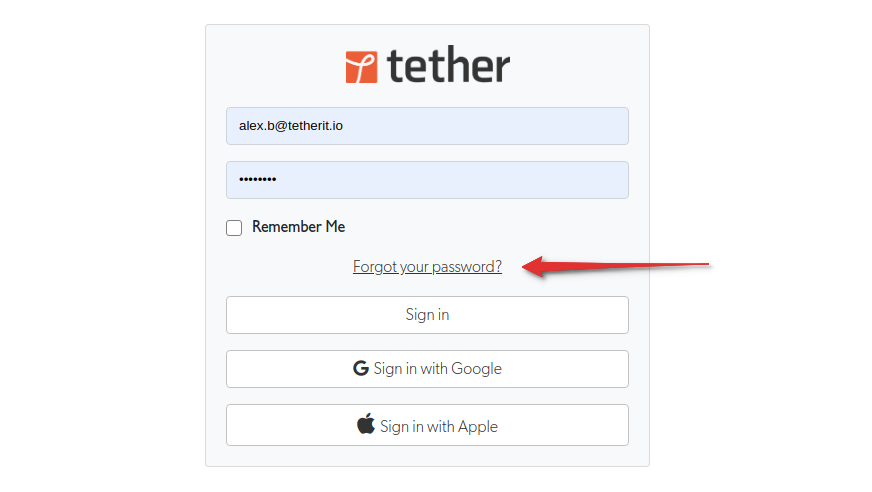
Step 1: Open the Login Page
Open the sign-in page or the TetherX app and click Forgot your password?
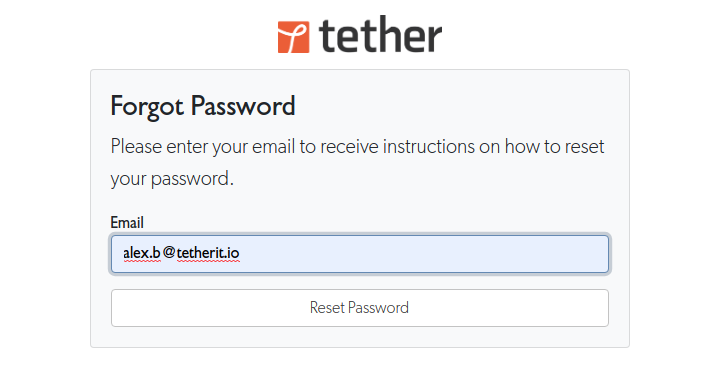
Step 2: Enter Your Email
Enter your email address and click Reset Password.
Step 3: Check Your Inbox
You will receive an email with instructions on how to reset your password. Follow the link in the email to set a new password.
Not Receiving the Email?
If you don't receive the password reset email, the most common causes are:
- Different email address - You may have registered with a different email than the one you entered
- Account no longer exists - Your integrator or administrator may have removed your account
- Email went to spam - Check your spam or junk folder for emails from TetherX
If neither applies, contact TetherX (opens in a new tab) or reach out to your integrator for assistance.
Locked Out After Too Many Attempts
If you have been guessing at your password, the account locks temporarily. Setting a new password from the reset email clears that lock straight away, so a reset is the quickest way back in. See Account Lockout.
Avoiding This Next Time
Adding a passkey means your fingerprint, face or screen lock signs you in, with no password to forget. Your password still works alongside it. Signing In lists every way into TetherX.
Referenced in: