

Table of Contents
PTZ Cameras Setup Guide
Control your PTZ (Pan-Tilt-Zoom) cameras directly from TetherX to monitor larger areas with a single camera.
Requirements
- A PTZ-capable camera (most modern IP cameras with motorised lenses)
- Camera must be online and connected to your TetherBox
- ONVIF protocol enabled on the camera (see How to Enable ONVIF)
Enable PTZ Controls
In the Details tab, find the Advanced Settings card
Enable the PTZ toggle
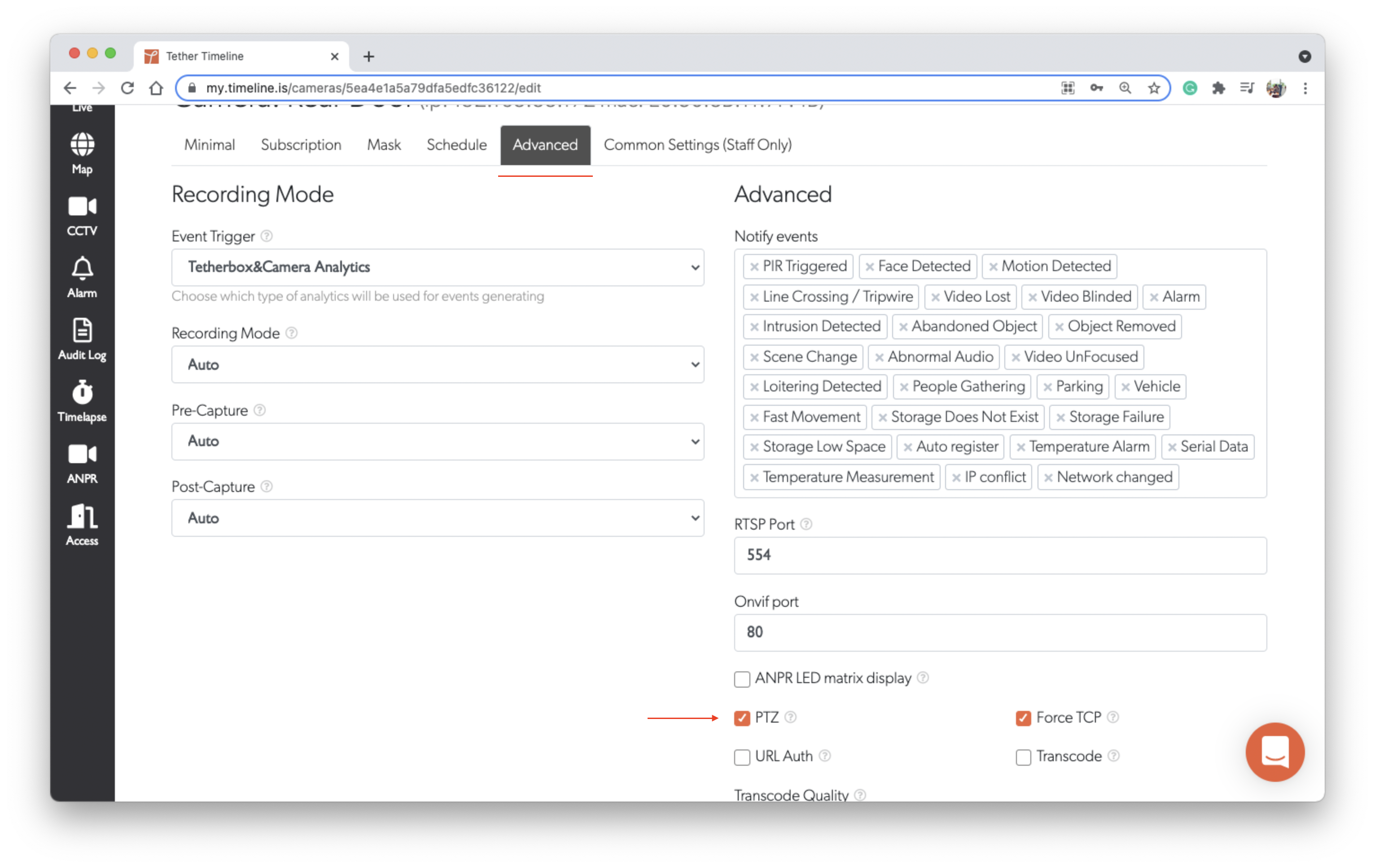
Note: Settings save automatically when changed.
Using PTZ Controls on Desktop
Go to Live View and select your PTZ camera
The PTZ controls appear in the top-left corner of the camera view:
- Directional arrows - Pan left/right, tilt up/down
- Zoom controls - Zoom in (+) and out (-)
- Fetch Presets - Load saved camera positions
- Fetch Relays - Access relay controls if configured
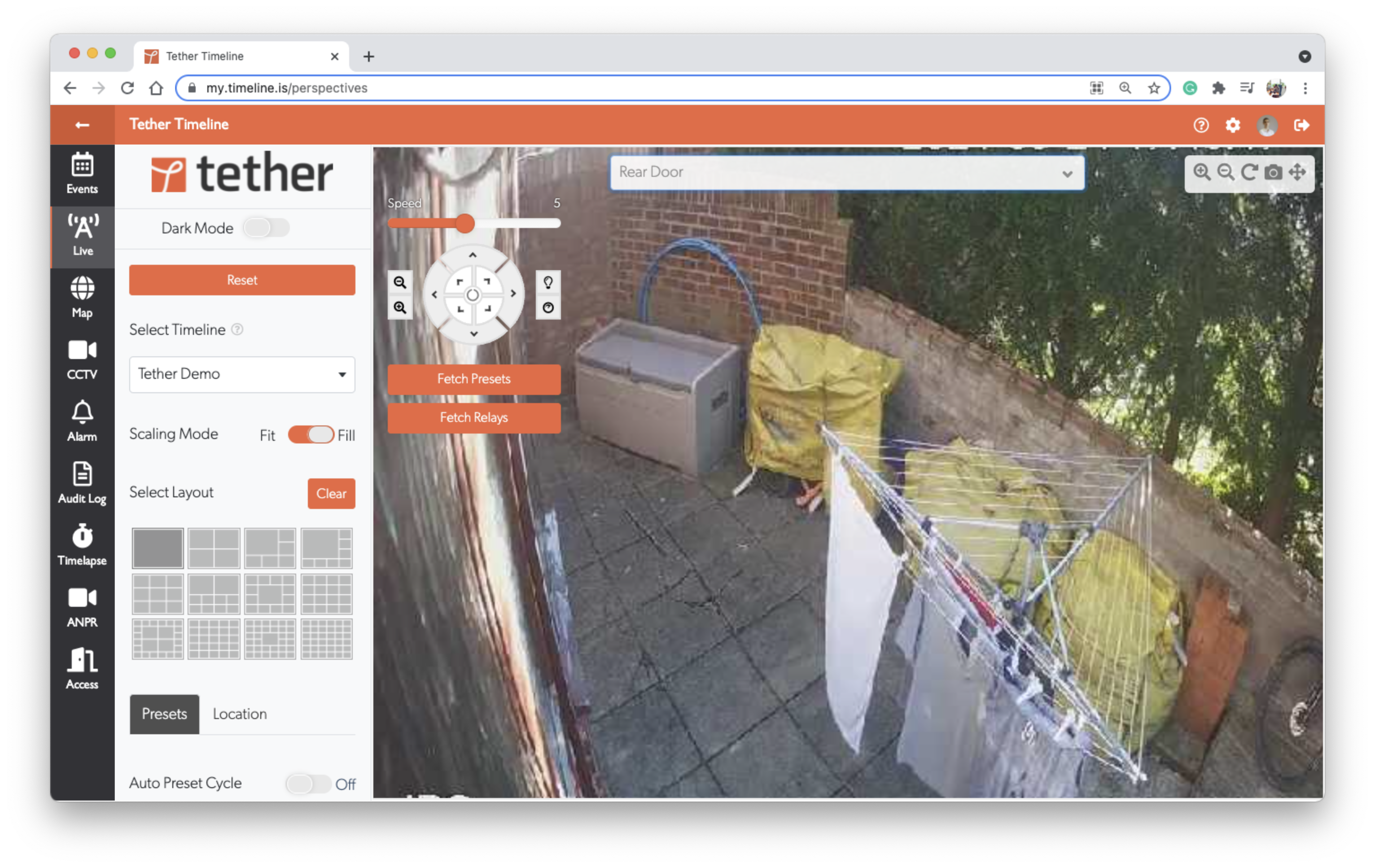
Tip: Click and hold the directional arrows for continuous movement, or click once for small adjustments.
Using PTZ Controls on Mobile
Open the TetherX app and go to the Live tab
Select your PTZ camera from the dropdown
Double-tap the screen to show PTZ controls
Use the on-screen joystick and zoom buttons to control the camera
Troubleshooting
PTZ Controls Not Appearing
- Check PTZ is enabled - Go to camera settings and verify the PTZ toggle is on
- Verify ONVIF support - Some cameras require ONVIF to be enabled for PTZ to work
- Check camera capabilities - Not all cameras support PTZ even if the setting is available
Camera Not Responding to Controls
- Network latency - PTZ commands may have a slight delay over slower connections
- Camera limits - The camera may have reached its pan/tilt limits
- Permissions - Check the camera's web interface for any PTZ restrictions
Presets Not Loading
- Configure presets on camera - Presets must be set up in the camera's own web interface first
- ONVIF compatibility - Some cameras don't expose presets via ONVIF
Related Articles
- Axis Setup - Native Axis PTZ API for smoother control
- How to Enable ONVIF - Enable ONVIF protocol for camera discovery and PTZ
- Live View - Using the live view interface
- Manual Camera Configuration - Manual camera settings reference
Referenced in:
Last updated: January 31, 2026